


Speedtest by Ookla
4.637.70K Reviews
App Specs
- Version
- 7.0.7
- Updated On
- License
- Free
- Downloads
- 100,000,000+
- Developer
- Ookla
- Categories
- Tools
- Platform
- Android, iOS
Screenshots
 Analysis by AppCompare
The first thing I’d keep in mind with a speed test is that one result rarely tells the whole story. Speedtest by Ookla is useful when your connection feels off, but the number it shows is a snapshot of a particular moment, network and route—not a guaranteed verdict on your internet service. I find it most helpful when I use it to investigate a pattern rather than to settle an argument with a single tap.
Where a quick test can mislead
It’s tempting to run a test once, see a disappointing result and assume the provider is at fault. In practice, your phone may be using mobile data instead of Wi-Fi, the wireless signal may be weak where you’re standing, or the network may simply be busy. A test can help narrow down the issue, but it doesn’t identify every cause on its own.
I get a more useful comparison by testing in the same place and under similar conditions. If the result changes sharply after I move closer to the router, that points me toward the local Wi-Fi connection. If it remains poor in several spots, that gives me a reason to investigate further. Repeating tests every few seconds, on the other hand, can create a pile of numbers without making the cause clearer.
Make the first test a fair one
Before tapping Go, I check whether I’m on the network I actually want to assess. For home internet, that means confirming the phone is connected to the home Wi-Fi; for mobile performance, it means using the cellular connection rather than Wi-Fi. I also pause downloads or video streams on the device when I can, because they compete for the same connection and can affect what the test measures.
For a quick home check, I start near the router and then repeat the test in the room where the problem happens. That small comparison is often more actionable than comparing a home result with a test taken at a café or outdoors. If I’m checking a mobile connection, I make a note of the location and whether reception seems steady, so I don’t mistake a temporary weak-signal spot for a general service problem.
Use the history to spot a pattern
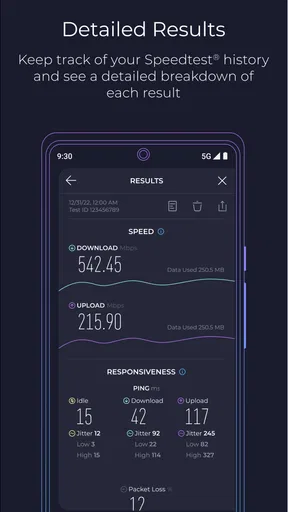
A practical way to get more from the app is to treat its test history as a simple record, not a scoreboard. I might check once during a quiet part of the day and again when the connection usually struggles. If a slowdown keeps happening at roughly the same time, that pattern is more useful when discussing the issue with an internet provider than one unusually low result.
Keep the conditions alongside your notes: Wi-Fi or cellular, where you were, and whether other devices were busy online. That context matters because a speed test cannot tell you what every device in the home is doing. It also helps separate a persistent problem from an isolated result caused by a crowded network or a weak signal in one room.
Worth Reading Before You Choose

Flipboard Shows What News Apps Must Do Beyond the Feed

Switching to Android Auto Means Rethinking Your Driving Routine

Google Calendar Makes a Crowded Week Easier to Manage

Ludo King Makes the Most of the Minutes Between Plans

Baby Panda World Brings Quick Play to Modern Phones, but Its Game Library Feels Busy

ESPN’s Live Game View Makes Following Close Games Easier
When the app is not the cause
If a test seems stuck or doesn’t match what you’re experiencing, I first close other network-heavy activity and check the connection again. I also confirm that the phone still has internet access outside the app. If ordinary browsing is failing too, the trouble may be with the network rather than the test itself; if browsing works but one result looks odd, a repeat under the same conditions is a sensible next step.
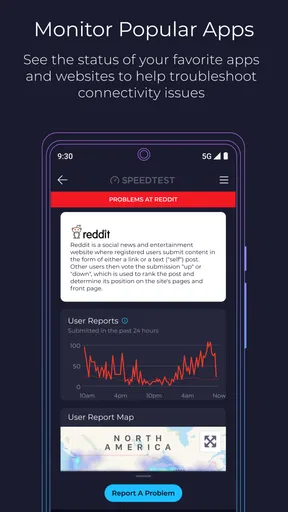
There’s an important limit here: a speed result does not prove that a particular streaming service, website or game is working well. Those services can have their own problems, and online gaming can feel laggy for reasons that aren’t captured by a headline speed figure. I use Speedtest as one clue in troubleshooting, then check the affected app or service separately before drawing a conclusion.
The Need for Speed
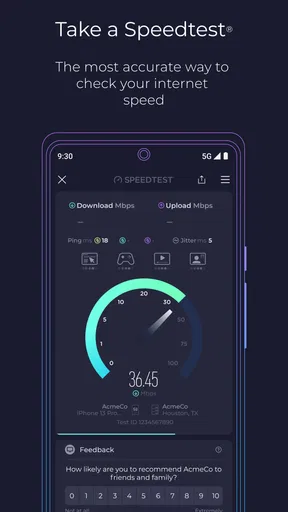
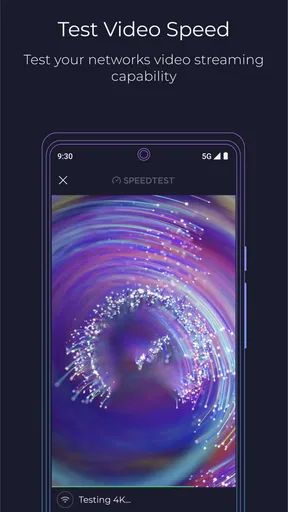
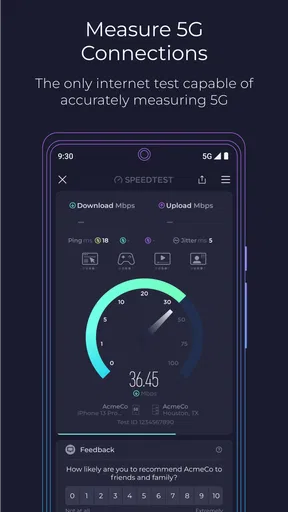
First off, let's talk about what Speedtest by Ookla actually does. It’s essentially a tool that measures your internet speed in real-time. You might be thinking, "Okay, but why do I need that?" Well, imagine you're about to watch your favorite show, but the video keeps buffering. Annoying, right? With this app, you can immediately see if it's your internet speed that's the culprit. It gives you a breakdown of your download speed, upload speed, and ping, all in a matter of seconds.
But speed isn't the only thing it checks. The app also provides insights into network consistency, so you can see if your connection is stable or if it’s jumping around like a hyperactive kangaroo. This is super handy if you suspect your provider might be throttling your speed or if you’re just curious about how your connection fares at different times of the day.
Easy Peasy Interface
One of the things I appreciate the most about Speedtest is its user-friendly interface. You don’t have to be a tech wizard to figure it out. As soon as you open the app, you’re greeted with a big "Go" button. Hit that, and within seconds, you’ll have your results. It’s as simple as ordering a pizza online, but way quicker.
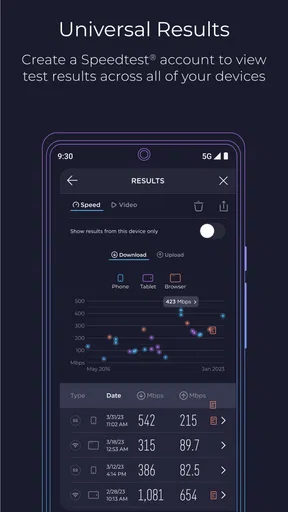
The results screen is straightforward, showing your speeds in large, easy-to-read numbers. You can even view your test history, which is great for comparing speeds over time. This is particularly useful if you’re considering a new internet plan and want to run some tests before and after the switch.
Beyond the Basics
Now, let's get into the nitty-gritty features that make Speedtest stand out. One cool feature is the "Speedtest VPN". Yep, you heard it right. The app offers a built-in VPN as a premium feature. This is fantastic for those who want an extra layer of privacy while surfing the web. Plus, using a VPN can sometimes help you bypass throttling and maintain a more stable connection.
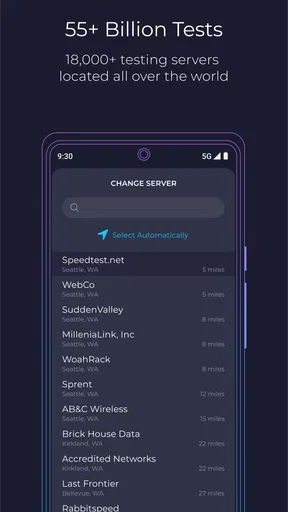
Another handy feature is the ability to test speeds on different servers. This means you can see how your connection performs with various locations, which is especially useful if you're into online gaming or streaming content from different countries.
Perfect for On-the-Go
If you’re someone who’s always on the move, Speedtest by Ookla has got you covered. The app is available for both Android and iOS, so you can test your internet speed whether you’re at home, at a café, or even halfway across the world. It’s like having a mini IT department in your pocket.
Plus, the app’s lightweight design means it won’t hog your phone’s resources. You can run it in seconds and get back to whatever you were doing without any lag.
Final Thoughts
In a world where internet speed can make or break your online experience, Speedtest by Ookla is a game-changer. It’s perfect for anyone who wants to stay informed about their internet performance without getting bogged down by technical jargon. Whether you’re streaming, gaming, or just casually browsing, knowing your speed can help you make informed decisions and possibly even save you some cash by ensuring you’re getting what you pay for from your ISP.
So, next time you find yourself waiting for a page to load or a video to buffer, remember that there's a handy little app ready to swoop in and diagnose the problem. And who knows, it might just help you win that argument with your provider about why you’re paying for high speed but getting something that feels more like dial-up.
Who gets the most from it
For me, the strongest use case is a quick, repeatable check when something feels wrong: a video keeps pausing, a work call sounds rough, or a large upload seems to crawl. The app is also handy when comparing rooms in a home or checking whether mobile service is usable at a particular stop. It suits curious users who want evidence before changing a router position or contacting their provider, without needing to interpret a complicated network dashboard.
There’s a useful distinction between checking a plan and checking an experience. A speed test can show whether a connection is delivering a healthy result at that moment, while a person may still have trouble with one specific game or site. I’d use it to support a broader diagnosis, not as a replacement for testing the actual activity that matters to me.
A realistic troubleshooting routine
Say a video call starts breaking up while I’m working from home. I’d run one test where I’m sitting, then another near the router, keeping other heavy internet use paused if possible. If the second result is noticeably better, I’d try improving the Wi-Fi path—perhaps moving to a more open spot—before blaming the internet plan. If both tests are poor, I’d repeat later and check whether other household devices are using the connection.
That sequence gives each result a purpose: first establish what happens at the problem location, then compare against a better-signal spot, then see whether timing changes the outcome. It avoids a common trap of collecting tests at random locations and trying to compare results that were made under completely different conditions. I’d keep a few representative results rather than running the app constantly.
Choosing between Speedtest and other checks
Compared with the built-in network indicators on a phone, Speedtest gives a more direct performance check instead of just showing that Wi-Fi or cellular service is connected. Compared with a provider’s own troubleshooting tool, it can be a convenient independent point of reference. But neither kind of test can explain every delay inside a particular app, and provider tools may be more appropriate when the next step is service-specific support.
For a quick answer, the prominent test button is an advantage over tools that expose many technical settings. For deeper diagnosis, that simplicity is also a boundary: someone investigating a complex home network may need router controls or more detailed diagnostics than a phone speed test provides. I’d choose Speedtest for a fast, understandable comparison, and a network-specific tool when I need to inspect equipment or troubleshoot a particular device.
What to expect before installing
Speedtest is a free tools app from Ookla, and its broad appeal is reflected in an average rating of 4.5 from around 1.5 million ratings, alongside over 100 million installs. It is rated for Everyone, runs on Android starting with version 7.0, and the current version is 7.0.3. The basic reason to install it is straightforward: checking a connection is easy, while optional in-app purchases range from $0.99 to $8.99 per item.
I wouldn’t install it expecting a speed test to fix a weak signal, repair a provider outage or guarantee that every online service will perform smoothly. Nor is it the right choice for someone who only wants to know whether a phone is connected; the operating system already makes that distinction. Its value is in measuring and comparing performance when a connection problem needs more than a guess.
My practical verdict
I’d recommend it to anyone who wants a clear first step when home Wi-Fi or mobile internet feels inconsistent. The best results come from testing deliberately, keeping the connection type and location in mind, and treating the history as evidence of a pattern rather than proof of a single cause. That approach makes the app more useful and helps avoid overreacting to one bad reading.
For everyday troubleshooting, Speedtest is approachable and quick, with enough context to guide the next question: is this a weak spot in the home, a temporary slowdown, or a wider connection issue? If you need a detailed network diagnosis, or if only one service is misbehaving, another check may be more suitable. For the simple but common job of finding out whether your connection is performing as expected, I find it a practical tool to keep on my phone.
Pros
- Quick and easy to use.
- Accurate speed measurements.
- Global server access.
- User-friendly interface.
- Detailed result history.
Cons
- Contains ads in free version.
- Limited features without subscription.
- Can drain battery quickly.
- Requires internet connection.
- May show server selection issues.
FAQs for Speedtest by Ookla
What features does Speedtest by Ookla offer?
Speedtest by Ookla provides a comprehensive suite of tools to measure your internet connection speed. It offers accurate readings for download, upload, and ping rates. The app also provides a detailed history of your past results, allowing you to compare performance over time. Additionally, it supports a wide range of devices and networks worldwide.
Is Speedtest by Ookla free to use?
Yes, Speedtest by Ookla is free to download and use. However, it does offer in-app purchases and a premium subscription option, which removes ads and provides additional features such as VPN access. The free version is sufficient for basic speed testing, but the premium version offers a more enhanced experience.
How accurate are the speed test results?
Speedtest by Ookla is renowned for its accuracy, leveraging a global network of servers to ensure reliable results. The app's precision can be affected by factors like network congestion and device performance. For the most accurate results, it is recommended to test at different times and locations to get a comprehensive overview of your network speed.
Can I use Speedtest by Ookla on different devices?
Absolutely. Speedtest by Ookla is available for both Android and iOS devices. It also offers a desktop version and browser extensions, providing flexibility to test your internet connection on various platforms. This cross-platform availability ensures you can monitor your network performance consistently across devices.
Does Speedtest by Ookla collect user data?
Speedtest by Ookla collects data necessary for providing accurate results and improving its services. This includes IP address, location, and network information. However, privacy is a priority, and Ookla adheres to strict data protection policies. Users can review the app's privacy policy for detailed information on data collection and usage.


